How to change or remove the camera button on the iPhone Lock Screen
Published October 29, 2026
On iOS 18 and later you can replace the camera button in the bottom-right corner of the Lock Screen with another control, or remove it. Touch and hold the Lock Screen, tap Customize, choose Lock Screen, tap the minus on the button, then tap the plus to pick something else.
Removing the button does not turn the camera off: according to current guides, swiping left on the Lock Screen still opens it. This guide shows the steps, what you can and cannot switch off, and how to put another app's camera on that button. Menu names depend on your iOS version.
Can I change the Lock Screen camera button?
Yes, on iOS 18 and later. The two round buttons at the bottom of the Lock Screen, flashlight on the left and camera on the right by default, are now controls you can change. Earlier iOS versions do not offer this, so if you do not see Customize with controls on your phone, check Settings → General → Software Update.
The controls can come from Apple or from apps that offer one, the same kind of controls that appear in Control Center. You can set different controls for each Lock Screen you have made.
How do I replace or remove it?
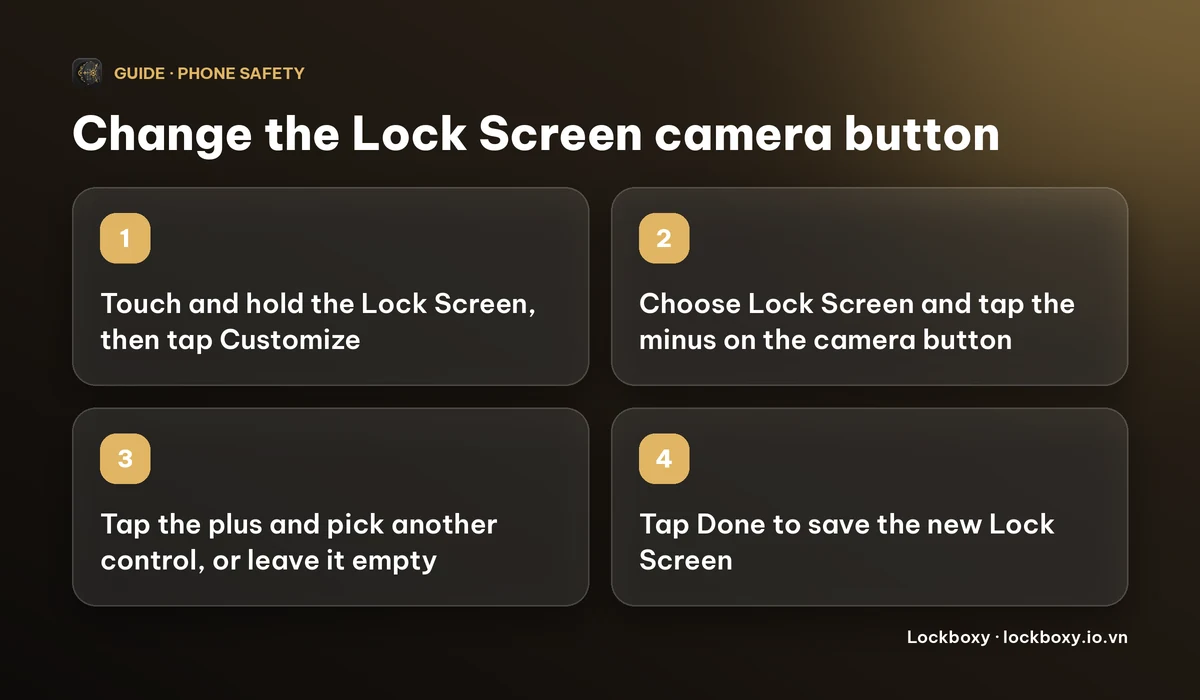
- 1Wake the iPhone and touch and hold the Lock Screen until the Lock Screens gallery appears. You may need to unlock with Face ID or your passcode first.
- 2Tap Customize and choose Lock Screen.
- 3Tap the minus on the camera button to remove it. Do the same for the flashlight if you want.
- 4Tap the plus that replaces it to pick another control, or leave the spot empty.
- 5Tap Done.
Guides disagree slightly on the exact wording of each step between iOS 18 versions. If a label does not match, look for Customize and then the corner buttons.
Does removing the button turn the camera off?
No. Swiping left on the Lock Screen still opens the Camera app on iOS 18, even with the button removed. The button is a convenience, not a lock.
If you do not want anyone to open the camera from a locked phone, the setting that does it is Screen Time: Settings → Screen Time → Content & Privacy Restrictions → Allowed Apps, then switch Camera off. That removes the Camera app and its Lock Screen access completely, for you as well, until you switch it back on. You will need Screen Time turned on, and a Screen Time passcode is worth setting.
The switches in Face ID & Passcode → Allow Access When Locked do not include the camera. What can someone do with your locked iPhone? lists the ones that exist.
What should I put on the button instead?
Common choices are a different app's camera, a timer, a voice memo, a note or a Shortcut. Pick the control that you would use with one tap while the phone is in your hand.
Remember that anything on the Lock Screen can be pressed by someone holding your locked phone. Many controls ask to unlock first, but not all do, so avoid putting controls that reveal personal content on the Lock Screen.
The Action button on iPhones that have one can also open a camera or run a Shortcut. It is set under Settings → Action Button.
How do I point the button at Lockboxy Camera?
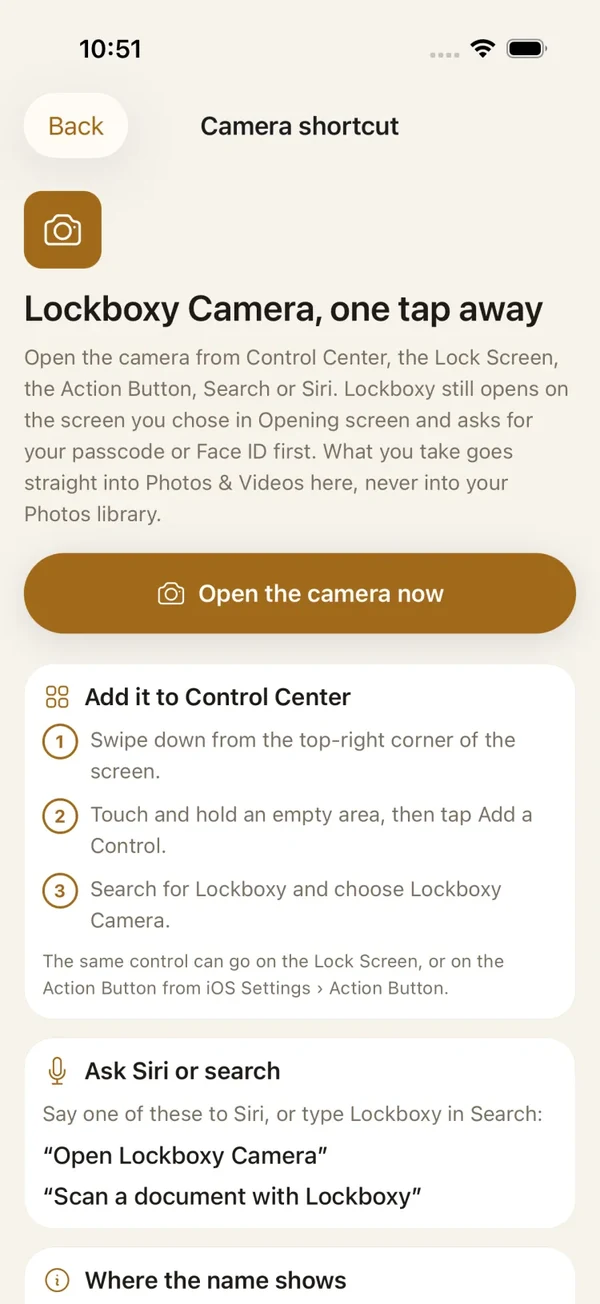
Lockboxy is an iPhone app that keeps photos, files and notes in an encrypted vault behind its own passcode. It offers a Lockboxy Camera control for iOS 18 and later. Add it from the plus on the Lock Screen, from Control Center, or to the Action button.
Tapping it opens Lockboxy on its normal lock screen first. After your Lockboxy passcode or Face ID, the camera opens, and what you shoot goes into the vault's Photos & Videos, not into your Photos library. It never skips the passcode.
On iOS 16 and later you can also ask Siri or Spotlight to open Lockboxy Camera, or to scan a document with Lockboxy. Settings → Security → Camera shortcut in the app explains each option.
The free plan holds up to 30 photos or videos and 10 files, and Premium removes those limits. The Camera app stays the only one that opens instantly from a swipe on the Lock Screen, so use this when you want pictures kept in the vault from the start. How to take photos that stay out of your iPhone camera roll goes further.
What if the new button does not show or does nothing?
- Check the iOS version: Lock Screen controls need iOS 18 or later.
- Open the app once after installing or updating it, then try adding the control again.
- Restart the iPhone if the control gallery does not list an app you just installed.
- If a button opens the app but not the camera, unlock it first: apps that protect themselves ask for a passcode before they act.
Frequently asked questions
How do I remove the camera button from the iPhone Lock Screen?
On iOS 18 or later, touch and hold the Lock Screen, tap Customize, choose Lock Screen, tap the minus on the camera button and tap Done. You can then leave the spot empty or add another control.
Can I still open the camera if I remove the button?
Yes. Swiping left on the Lock Screen still opens the Camera app. To block the camera on a locked phone you have to turn Camera off under Screen Time → Content & Privacy Restrictions → Allowed Apps, which turns it off everywhere.
Can I put another app on the Lock Screen camera button?
Yes, if the app offers a control. On iOS 18 and later tap the plus where the button was and pick from the list.
Does Lockboxy Camera save photos to my Photos app?
No. After you unlock Lockboxy, what you take goes into the vault's Photos & Videos and not into your Photos library. The free plan holds up to 30 photos or videos.
Does Lockboxy Camera open without a passcode?
No. It opens Lockboxy on its lock screen and starts the camera only after your passcode or Face ID.
Want a private place with its own passcode?
Lockboxy encrypts photos, videos, files and notes on your device, behind a passcode separate from your phone's. No account, no server.
Get Lockboxy on the App StoreMore guides
- What can someone do with your locked iPhone? How to limit Lock Screen access
- How to take photos that don't save to your iPhone camera roll
- How to lend your iPhone without exposing your photos
- How to hide photos on iPhone (and what “hidden” really protects)
- How to lock apps on iPhone: Face ID lock, hiding apps and older-iOS workarounds
- How to store photos of your ID safely on your phone
- How to permanently delete photos on iPhone (and every copy you forgot)
- How to lock notes on iPhone with a password or Face ID
- How to store passwords safely on your phone
- How to store a seed phrase safely (and what not to do)
- What to do before sending your iPhone for repair
- How to scan documents on iPhone (no app needed) and store them safely
- How to store 2FA backup codes safely (and where not to)
- How to handle sensitive screenshots on iPhone (bank transfers, OTPs, IDs)
- How to keep voice recordings private on iPhone
- How to stop iPhone photos syncing to your iPad and Mac
- What to do when your iPhone is lost or stolen
- How to erase your iPhone before selling it
- Lockboxy vs the iPhone Hidden album: which should you use?
- Lockboxy vs locked notes on iPhone: which is better for private notes?
- Phone privacy for livestream sellers: keep customer data off the stream
- Keeping client documents private: a phone routine for real-estate agents
- How to hide contacts on iPhone: what really works
- How to tell if someone went through your iPhone
- How to move private photos to a new iPhone
- How to password protect a folder on iPhone
- How to remove location data from photos on iPhone before sharing
- How to store bank card details safely on your phone
- How to find and share a saved Wi-Fi password on iPhone
- How to stop unwanted photos from showing up in Memories and Featured Photos on iPhone
- How to control which photos an app can access on iPhone
- How to find the Hidden album on iPhone (and why it may be missing)
- How to show someone a photo on your iPhone without them swiping to the others
- How to stop WhatsApp saving photos to your iPhone camera roll
- How to stop photos from Messages showing up in your iPhone Photos app
- How to password protect a video on iPhone
- How to password protect a PDF on iPhone
- What does Private Browsing on iPhone actually hide?
- Where do downloads go on iPhone? How to find, move and delete them
- How to hide private content in the iPhone App Switcher
- How to back up your iPhone photos without iCloud
- How to stop photos from showing up in iPhone Spotlight search
- Why is there a green or orange dot on my iPhone? How to see which app is using your camera or microphone
- How to keep a private journal on iPhone
- How to stop unwanted AirDrops on iPhone
- How to keep medical documents and insurance cards private on iPhone
- Forgot the passcode of your private photo vault app? What you can and can't recover
- What happens to your iPhone photos and private data when you die? How to set up a Legacy Contact
- You copied a password on iPhone: who can see your clipboard, and how to stop apps pasting from it
- What is Stolen Device Protection on iPhone, and should you turn it on?
- Where to store PIN codes and door codes on iPhone
- How to share a password with family on iPhone without sending it in a chat
- Where to store your Apple Account recovery key (and what if you lose it)
- How to see saved passwords on iPhone (and what to do when one is missing)
Questions about how Lockboxy works? Read the FAQ