
What to do before sending your iPhone for repair
Published October 1, 2026
Before sending your iPhone for repair, make a fresh backup, check what the repairer needs (Find My status, passcode or neither), remove the SIM card, and — if the repair will take a while and the shop does not need your data — erase the phone and restore it afterwards. If you cannot erase it, at least remove payment cards and move or lock sensitive photos and documents.
Below is the same checklist step by step, with the reasons behind each item, so you can prepare in about half an hour.
Why prepare at all?
Most repairers are honest, but a phone in a shop passes through several hands, and some repairs end with a replaced board or a reset device. Preparation protects you against two different risks: losing data because the phone comes back erased, and exposing data because someone could open it while it is away.
How do I back up my iPhone before a repair?
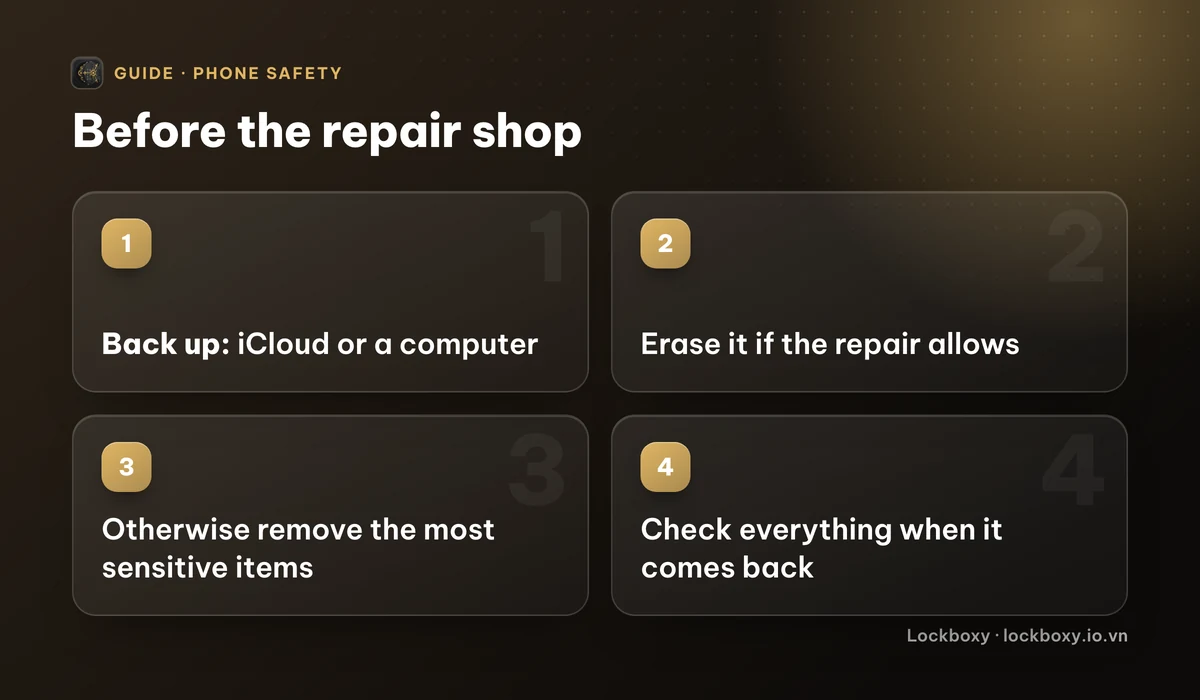
Back up first, whatever else you decide:
- 1iCloud: open Settings, tap your name, then iCloud, then iCloud Backup, and tap Back Up Now. Wait until it finishes and check the time of the last backup.
- 2Computer: connect the iPhone to a Mac (Finder) or a Windows PC (Apple Devices app or iTunes) and choose to back up. Turning on encrypted local backup also keeps saved passwords and Health data.
- 3Check apps with their own storage — chat apps often have a separate backup setting, and some authenticator apps need their own export or account sync.
Make sure you know your Apple Account password. You will need it to restore, and possibly to reactivate the phone.
Do I need to turn off Find My or give my passcode?
It depends on the repairer and the repair, so ask before you hand the phone over. Apple and authorised service providers publish their own preparation steps; follow those when you book.
- Find My: many repairs traditionally required it to be turned off. Recent iOS versions let some repairs proceed with Find My still on, so you can keep tracking the device — but whether that applies depends on the repair and the provider, so confirm it with them.
- Passcode: many hardware repairs do not need it, because the technician can test the phone without opening your data. If a shop asks for it, ask why and whether the test can be done in front of you instead.
- If you must share the passcode, change it to a temporary one first (Settings → Face ID & Passcode → Change Passcode) and change it back when the phone returns.
Should I erase the phone before the repair?
For a long repair, or one done by a shop you do not know, erasing is the strongest protection: there is nothing left to see. After you have a verified backup:
- 1Open Settings → General → Transfer or Reset iPhone → Erase All Content and Settings.
- 2Follow the prompts; you may need your Apple Account password.
- 3When the phone comes back, restore from the backup during setup.
Skip this only if the shop needs your data in place, or if the phone cannot be erased because the screen or buttons are broken — in that case, follow the next section.
What should I remove if I cannot erase it?
- Remove the physical SIM card. If you use an eSIM, leave it installed unless the repairer says otherwise — deleting it may mean asking your carrier for a new one.
- Remove payment cards from Wallet: open Wallet, tap a card, tap the More button, then Card Details, and choose Remove Card. You can add them back later.
- Sign out of banking apps that stay logged in, or check that they ask for Face ID or a code every time they open.
- Move sensitive photos — ID scans, bank screenshots, private pictures — out of the main Library, and empty Recently Deleted. The guide to permanently deleting photos and the guide to storing ID photos safely cover how.
- Turn on Use Face ID for the Hidden album in Settings → Apps → Photos.
- Note the phone's condition with a few photos of the case and screen before you hand it over.
What should I check when the phone comes back?
- Change any passcode you shared, and check Settings → Face ID & Passcode for faces or fingerprints you did not add.
- Look through Settings → General → VPN & Device Management for profiles you did not install.
- Confirm Find My is on again and that your Apple Account shows only devices you recognise.
The same habits help when you hand the phone to someone for a shorter time; see how to lend your iPhone without exposing your photos.
Where Lockboxy helps
Erasing is not always possible, and not every repair lets you keep the passcode to yourself. Content stored in Lockboxy stays protected in that situation, because it does not depend on the phone passcode.
- Lockboxy has its own passcode, separate from the iPhone passcode, so sharing the phone code with a technician does not open the vault.
- Photos, videos, files and notes are encrypted with AES-256 on the device. There is no account and no server holding a copy.
- If you plan to erase, Premium can export an encrypted backup file that you save where you choose — iCloud Drive, Google Drive or Files — and Verify Restore lets you check that the backup actually restores before you rely on it.
The honest caveat: if you forget the Lockboxy passcode and have no Recovery Key (Premium), nobody can open the vault, and an erase without a backup removes it for good. Answers to common questions are in the FAQ.
If you are replacing the phone rather than repairing it, see how to move private photos to a new iPhone.
Want a private place with its own passcode?
Lockboxy encrypts photos, videos, files and notes on your device, behind a passcode separate from your phone's. No account, no server.
Get Lockboxy on the App StoreMore guides
- How to lend your iPhone without exposing your photos
- How to permanently delete photos on iPhone (and every copy you forgot)
- How to store photos of your ID safely on your phone
- How to hide photos on iPhone (and what “hidden” really protects)
- How to lock apps on iPhone: Face ID lock, hiding apps and older-iOS workarounds
- How to lock notes on iPhone with a password or Face ID
- How to store passwords safely on your phone
- How to store a seed phrase safely (and what not to do)
- How to take photos that don't save to your iPhone camera roll
- How to scan documents on iPhone (no app needed) and store them safely
- How to store 2FA backup codes safely (and where not to)
- How to handle sensitive screenshots on iPhone (bank transfers, OTPs, IDs)
- How to keep voice recordings private on iPhone
- How to stop iPhone photos syncing to your iPad and Mac
- What to do when your iPhone is lost or stolen
- How to erase your iPhone before selling it
- Lockboxy vs the iPhone Hidden album: which should you use?
- Lockboxy vs locked notes on iPhone: which is better for private notes?
- Phone privacy for livestream sellers: keep customer data off the stream
- Keeping client documents private: a phone routine for real-estate agents
- How to hide contacts on iPhone: what really works
- How to tell if someone went through your iPhone
- How to move private photos to a new iPhone
- How to password protect a folder on iPhone
- How to remove location data from photos on iPhone before sharing
- How to store bank card details safely on your phone
- How to find and share a saved Wi-Fi password on iPhone
- How to stop unwanted photos from showing up in Memories and Featured Photos on iPhone
- How to control which photos an app can access on iPhone
- How to find the Hidden album on iPhone (and why it may be missing)
- How to show someone a photo on your iPhone without them swiping to the others
- How to stop WhatsApp saving photos to your iPhone camera roll
- How to stop photos from Messages showing up in your iPhone Photos app
- How to password protect a video on iPhone
- How to password protect a PDF on iPhone
- What does Private Browsing on iPhone actually hide?
- Where do downloads go on iPhone? How to find, move and delete them
- How to hide private content in the iPhone App Switcher
- How to back up your iPhone photos without iCloud
- How to stop photos from showing up in iPhone Spotlight search
- What can someone do with your locked iPhone? How to limit Lock Screen access
- Why is there a green or orange dot on my iPhone? How to see which app is using your camera or microphone
- How to keep a private journal on iPhone
- How to stop unwanted AirDrops on iPhone
- How to keep medical documents and insurance cards private on iPhone
- How to change or remove the camera button on the iPhone Lock Screen
- Forgot the passcode of your private photo vault app? What you can and can't recover
- What happens to your iPhone photos and private data when you die? How to set up a Legacy Contact
- You copied a password on iPhone: who can see your clipboard, and how to stop apps pasting from it
- What is Stolen Device Protection on iPhone, and should you turn it on?
- Where to store PIN codes and door codes on iPhone
- How to share a password with family on iPhone without sending it in a chat
- Where to store your Apple Account recovery key (and what if you lose it)
- How to see saved passwords on iPhone (and what to do when one is missing)
Questions about how Lockboxy works? Read the FAQ