How to store passwords safely on your phone
Published October 1, 2026
The safest way to store passwords on your phone is a password manager — on iPhone the built-in Passwords app (iCloud Keychain), on Android Google Password Manager, or a dedicated password manager app — combined with a unique password for every account and two-factor authentication on the important ones. Passwords should not live in a plain note, a screenshot or a chat with yourself.
This guide shows how to set up the built-in options step by step, how to fix the passwords you already have, and where a separate encrypted vault fits in.
Why not just keep passwords in Notes or a screenshot?
Because those places are open to anyone holding your unlocked phone, and they get copied around. A screenshot of a login page sits in your photo library, syncs to iCloud or Google Photos and shows up when you hand someone the phone to look at holiday pictures. An unlocked note is searchable by anyone who picks up the phone. A message you sent to yourself in a chat app lives on that service too.
A password manager is built for the opposite: it encrypts what it stores, asks for Face ID or your passcode before showing anything, and can fill passwords in for you so you never need to copy them around.
How do I use the built-in password manager on iPhone?
From iOS 18, iPhone has a dedicated Passwords app; on iOS 17 and earlier the same data is under Settings → Passwords.
- 1Make sure your passwords sync: Settings → your name → iCloud → Passwords (called Passwords and Keychain on older versions) and turn it on. This keeps them end-to-end encrypted across your Apple devices.
- 2Turn on AutoFill: Settings → General → AutoFill & Passwords → AutoFill Passwords and Passkeys.
- 3Open the Passwords app. It requires Face ID, Touch ID or your passcode before showing anything.
- 4Tap the Security section (or Security Recommendations on older versions) to see passwords that are reused, weak or have appeared in a known data leak. Change those first.
- 5When you create a new account in Safari or an app, accept the suggested strong password — iPhone saves it automatically.
And on Android?
Most Android phones use Google Password Manager, which is tied to your Google account.
- 1Open Settings → Google → Autofill → Autofill with Google and make sure it is on (the exact path varies slightly by phone maker).
- 2Open Google Password Manager from that screen, or from Chrome's settings under Password Manager.
- 3Run Password Checkup to find compromised, reused and weak passwords, and change the ones it flags.
- 4Protect the Google account itself with a strong password and 2-Step Verification, since it now guards everything else.
What makes the passwords themselves safe?
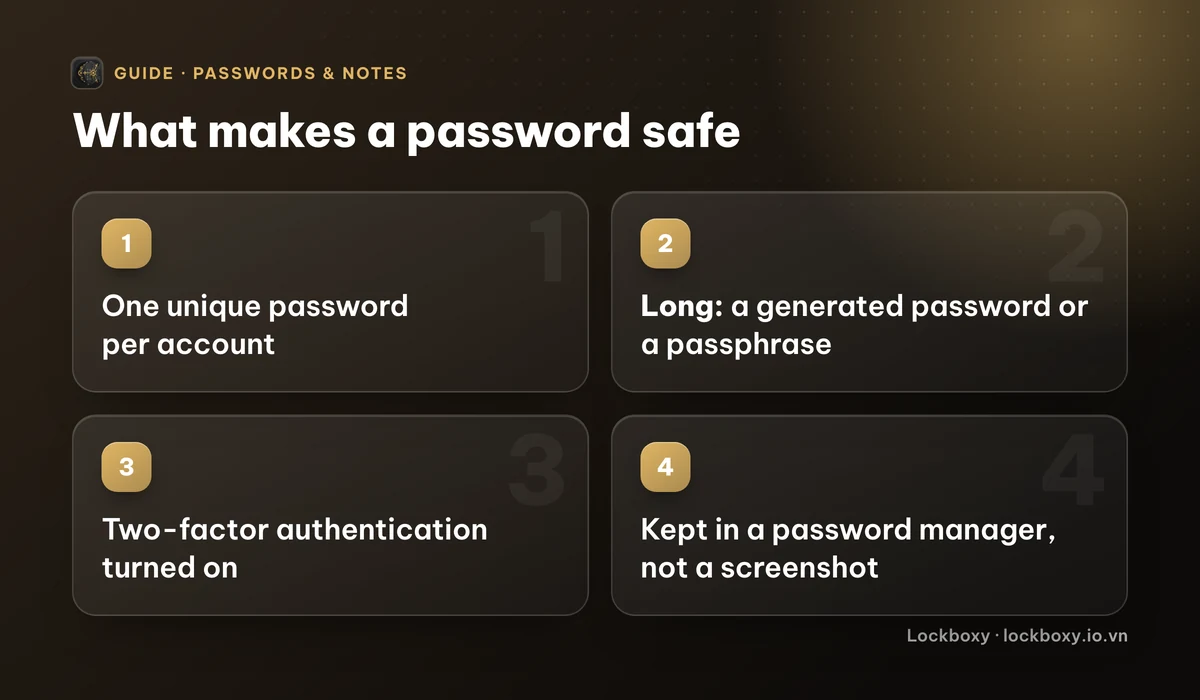
The tool matters less than these habits:
- One password per account. When one site leaks, a reused password lets attackers into every other account that shares it.
- Long and random. Let the password manager generate them; you do not need to remember them.
- Turn on two-factor authentication for email, banking, social media and your Apple or Google account. An authenticator app or passkey is stronger than an SMS code.
- Save the backup codes those accounts give you when you turn on 2FA. Store them as carefully as the password itself.
- Never type a password or code into a page someone sent you in a message, and never read one out to a caller, whoever they say they are.
What about the one password I have to remember?
Every password manager is protected by something you have to remember: your phone passcode, your Apple Account or Google password, or a master password. Make that one long — a passphrase of several unrelated words works well — and do not use it anywhere else.
Write it down on paper and keep it somewhere safe at home. That sounds old-fashioned, but a piece of paper in a drawer is out of reach of anyone online. For crypto wallets the same idea applies with higher stakes — see how to store a seed phrase safely.
If you prefer to keep a short list of non-login secrets in Notes — a door code, a Wi-Fi password — at least lock that note with a separate password: see how to lock notes on iPhone.
Where Lockboxy helps
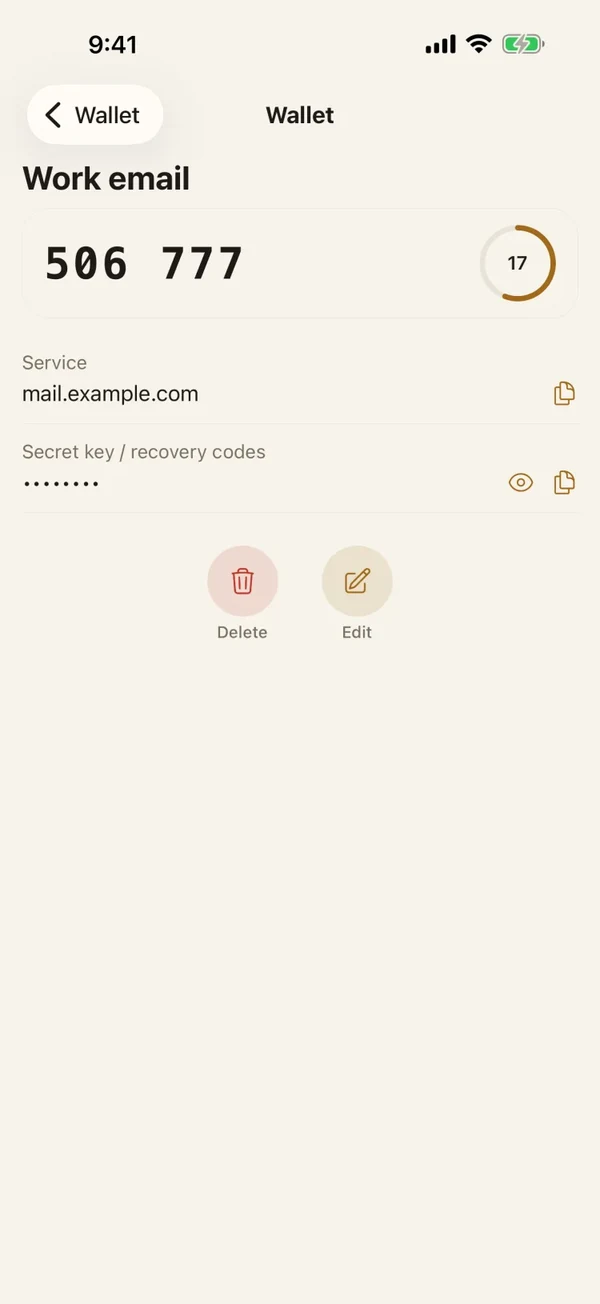
Lockboxy is not a replacement for your phone's password manager: it does not fill passwords into apps or websites. What its Wallet does is give you an encrypted place, behind its own passcode, for the things that do not fit neatly in a password manager.
- Bank cards (see how to store bank card details safely), passwords, Wi-Fi logins (see how to find and share a saved Wi-Fi password), crypto seed phrases and a live 2FA code generator, with every field encrypted individually.
- Breach checks for saved passwords, so you know when one needs changing.
- Everything is encrypted with AES-256 on the device; there is no account and no server holding a copy.
- The Wallet is unlimited on the free plan.
The vault's key is derived from your passcode, so if you forget it, nobody — including us — can open the vault, unless you generated a Recovery Key (Premium) in advance. If you are about to hand your phone in for repair, this checklist covers what to do with saved passwords first. More answers are in the Lockboxy FAQ.
Want a private place with its own passcode?
Lockboxy encrypts photos, videos, files and notes on your device, behind a passcode separate from your phone's. No account, no server.
Get Lockboxy on the App StoreMore guides
- How to find and share a saved Wi-Fi password on iPhone
- How to store bank card details safely on your phone
- How to store a seed phrase safely (and what not to do)
- How to lock notes on iPhone with a password or Face ID
- What to do before sending your iPhone for repair
- You copied a password on iPhone: who can see your clipboard, and how to stop apps pasting from it
- Where to store PIN codes and door codes on iPhone
- How to share a password with family on iPhone without sending it in a chat
- How to hide photos on iPhone (and what “hidden” really protects)
- How to lock apps on iPhone: Face ID lock, hiding apps and older-iOS workarounds
- How to store photos of your ID safely on your phone
- How to permanently delete photos on iPhone (and every copy you forgot)
- How to lend your iPhone without exposing your photos
- How to take photos that don't save to your iPhone camera roll
- How to scan documents on iPhone (no app needed) and store them safely
- How to store 2FA backup codes safely (and where not to)
- How to handle sensitive screenshots on iPhone (bank transfers, OTPs, IDs)
- How to keep voice recordings private on iPhone
- How to stop iPhone photos syncing to your iPad and Mac
- What to do when your iPhone is lost or stolen
- How to erase your iPhone before selling it
- Lockboxy vs the iPhone Hidden album: which should you use?
- Lockboxy vs locked notes on iPhone: which is better for private notes?
- Phone privacy for livestream sellers: keep customer data off the stream
- Keeping client documents private: a phone routine for real-estate agents
- How to hide contacts on iPhone: what really works
- How to tell if someone went through your iPhone
- How to move private photos to a new iPhone
- How to password protect a folder on iPhone
- How to remove location data from photos on iPhone before sharing
- How to stop unwanted photos from showing up in Memories and Featured Photos on iPhone
- How to control which photos an app can access on iPhone
- How to find the Hidden album on iPhone (and why it may be missing)
- How to show someone a photo on your iPhone without them swiping to the others
- How to stop WhatsApp saving photos to your iPhone camera roll
- How to stop photos from Messages showing up in your iPhone Photos app
- How to password protect a video on iPhone
- How to password protect a PDF on iPhone
- What does Private Browsing on iPhone actually hide?
- Where do downloads go on iPhone? How to find, move and delete them
- How to hide private content in the iPhone App Switcher
- How to back up your iPhone photos without iCloud
- How to stop photos from showing up in iPhone Spotlight search
- What can someone do with your locked iPhone? How to limit Lock Screen access
- Why is there a green or orange dot on my iPhone? How to see which app is using your camera or microphone
- How to keep a private journal on iPhone
- How to stop unwanted AirDrops on iPhone
- How to keep medical documents and insurance cards private on iPhone
- How to change or remove the camera button on the iPhone Lock Screen
- Forgot the passcode of your private photo vault app? What you can and can't recover
- What happens to your iPhone photos and private data when you die? How to set up a Legacy Contact
- What is Stolen Device Protection on iPhone, and should you turn it on?
- Where to store your Apple Account recovery key (and what if you lose it)
- How to see saved passwords on iPhone (and what to do when one is missing)
Questions about how Lockboxy works? Read the FAQ